
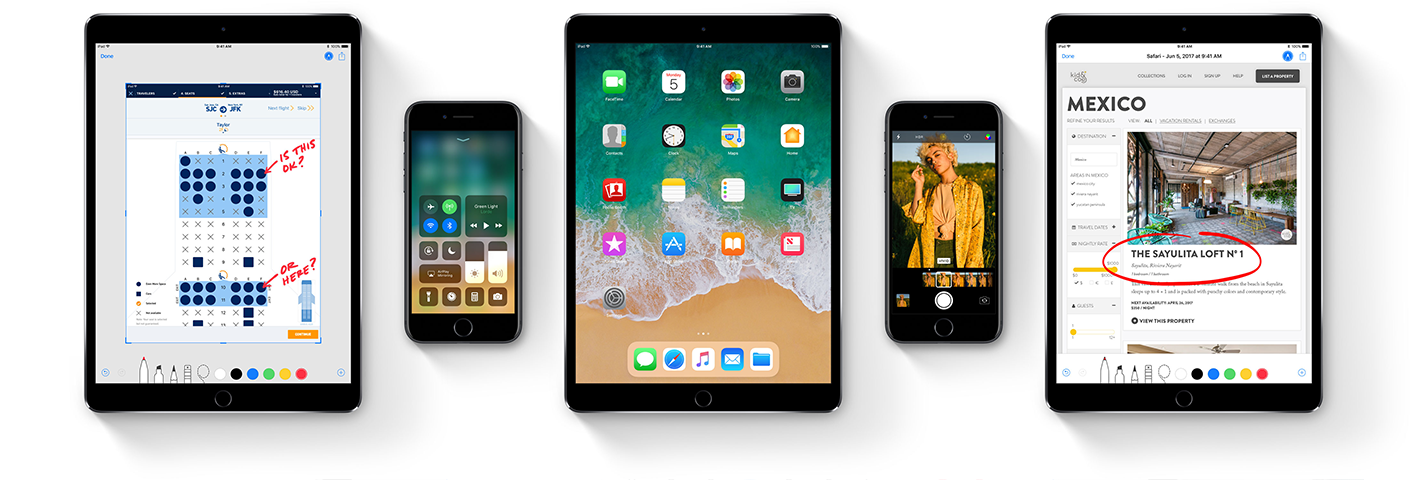
iOS 10.3.3
About the security content of iOS 10.3.3
This document describes the security content of iOS 10.3.3.
About Apple security updates
For our customers' protection, Apple doesn't disclose, discuss, or confirm security issues until an investigation has occurred and patches or releases are available. Recent releases are listed on the Apple security updates page.
For more information about security, see the Apple Product Security page. You can encrypt communications with Apple using the Apple Product Security PGP Key.
Apple security documents reference vulnerabilities by CVE-ID when possible
macOS 10.12.6

About the macOS Sierra 10.12.6 Update
This update is recommended for all macOS Sierra users.
The macOS Sierra 10.12.6 Update improves the security, stability, and compatibility of your Mac, and is recommended for all users.
Enterprise content:
Resolves an issue that prevents making certain SMB connections from the Finder.
Fixes an issue that causes Xsan clients to unexpectedly restart when moving a file within a relation point on a Quantum StorNext File System.
Improves the stability of Terminal app.
macOS Sierra 10.12.5 Update
https://support.apple.com/kb/DL1918?viewlocale=en_US&locale=en_US
The macOS Sierra 10.12.5 update improves the security, stability and compatibility of your Mac, and is recommended for all users.
This update:
Fixes an issue where audio may stutter when played through USB headphones
Enhances compatibility of the Mac App Store with future software updates
Adds support for media-free installation of Windows 10 Creators Update using Boot Camp
For more detailed information about this update, please visit: https://support.apple.com/kb/HT207706
For detailed information about the security content of this update, please visit: https://support.apple.com/kb/HT201222

Jabra Talk2
Introducing Jabra Talk 2
Clear and reliable hands-free calling
HD Voice for clearer conversation
Enjoy HD Voice for a better call experience and premium sound anywhere, anytime. Compatible with Apple iOS and Android smartphones.
Flexible Eargels for maximum comfort
Wear your headset with comfort all day, with soft and flexible Eargels. With multiple Eargels supplied, you can find the fit that is most secure for you.
Up to 9 hours battery lets you talk all day
Get up to 9 hours of talk/music time on a single charge, for all day use when in the car or on-the-go, and up to 9 days standby time. Voice Guidance will let you know when it’s time to recharge.
Voyager Edge Firmware v34

Voyager Edge Firmware Release Notes
Article ID : 000014765
Version 34
March 13, 2017: Voyager Edge/Voyager Edge UC Firmware Version 34
Resolved Issues:
Fixed an issue where languages other than English are not getting caller announcement voice prompts
Version 32
June 25, 2015: Voyager Edge Firmware Version 32
What's New
Compatibility with Apple and Android smart watches and Plantronics Hub mobile
Compatibility with Plantronics Aware for Cisco DX series phones
Version 28
December 22, 2014: Voyager Edge Firmware Version 28
What's New
Improvements in sensor performance and reliability
Version 24
August 15, 2014: Voyager Edge Firmware Version 24
Resolved Issues
Headset will not charge when connected to the USB port of a PC running Windows 8.1
Version 23
July 11, 2014: Voyager Edge Firmware Version 23
What's New
Enhanced digital signal processing (DSP) for improved audio
iOS app auto install and auto launch feature
Resolved Issues
Auto-pause music function does not work when it is enabled after disabling smart sensors
Headset auto-reconnects with phones if user removes headset, disconnects phone 1, and starts playing music in headset from phone 2
Headset voice prompts are not changed completely if changing language in Hub
Hub app shows 'not connected' if headset connected to Android or iPhone
iPhone mobile app announcement mistakenly appears again if headset is paired with iPhone, paired with another phone, and then reconnected with iPhone
Version 18
March 31, 2014: Voyager Edge Released. Firmware Version 18
VOYAGER EDGE: HOW TO UPDATE THE FIRMWARE
ARTICLE ID:
000021786
PLANTRONICS HUB ENABLES YOU TO UPDATE THE FIRMWARE ON YOUR PLANTRONICS VOYAGER EDGE HEADSET. IN ADDITION, PLANTRONICS HUB ENABLES YOU TO CONFIGURE CERTAIN OPTIONS FOR YOUR HEADSET, SUCH AS THE PREFERRED LANGUAGE FOR VOICE PROMPTS AND COMMANDS.
Please follow these steps to download Plantronics Hub software on your Computer System to update the headset firmware:
1. Go to http://www.plantronics.com/us/product/plantronics-hub-desktop
2. Click on your operating system (Windows/Mac) to download Plantronics Hub Desktop.
3. Once the setup has downloaded on your computer, you will need to run the setup and agree to the Terms & Conditions, then a Plantronics Hub icon will be created on your desktop.
4. Connect your headset to your computer using the USB cable/Charging Cable provided with the headset and open the Plantronics Hub software. You will find an update for the respective headset on Hub. Plantronics Hub will automatically detect your Bluetooth device once connected. (if not, then restart your PC/MAC and try again).
5. Update the firmware using the update button on Hub (use a USB port on your desktop/Laptop while updating the firmware). The updated version will show after successful completion of the firmware update.
[2020.1024 updated links to reflect plantronics to poly name change-over. -rws]




